C2 Manual
TooBeFun C2 is a mini joystick controller with a 1.4-inch screen and built-in games. It supports Bluetooth connectivity and extensive customization through the web-based driver
Online Demo
Click the play button below to try C2 online.
1. Product Overview
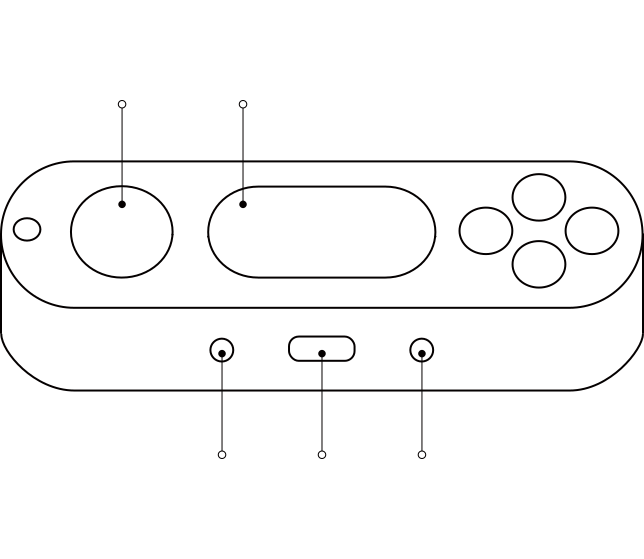 JoystickScreenResetUSB-CPowerXYAB
- Briefly press the Power button to turn C2 on. Press it again to turn C2 off
- Before first use, charge C2 with a
USB-Ccable at 5V - C2 opens the menu when powered on. Move the joystick up or down to switch between apps, then press any button to open the selected app
- Press and hold the joystick at any time to return to the menu
2. Playing the Built-in Games
- How to play the built-in games:
| Name | How to Play |
|---|---|
JUMP | Press any button to jump over obstacles and score as many points as possible |
CLUB | Hold any button to extend the bridge, then release it to cross and score as many points as possible |
ANTI | Move with the joystick and press any button to shoot. You reload after every 8 shots. Destroy blocks to score as many points as possible |
FALL | Press any button to make the ghost jump over obstacles and score as many points as possible |
LEAP | Hold any button to compress the character, then jump over the spikes and reach the finish line |
ZINC | Press A to jump and B to switch colors. Match the colors to score as many points as possible |
RAIN | Move the joystick to collect white balls and avoid red balls. Score as many points as possible |
RISE | Move the joystick to keep bouncing upward and score as many points as possible |
SORA | Press any button to change direction and collect balls. Score as many points as possible |
BRICK | Move the joystick to bounce the ball and break the bricks. You have three lives to clear three levels |
- Press and hold the joystick while playing to return to the menu
- Use the C2 Web Driver to rename a game or modify its source code
- Use AI in the C2 Web Driver to create a new game or remix an existing one
- After editing a preset in the C2 Web Driver, connect C2 with a
USB-Ccable and flash the preset to the device
3. Using C2 as a Game Controller
- Select
PADfrom the menu - Turn on Bluetooth and select
Xbox Wireless Controller. Once connected, a whiteBLEindicator appears on the screen - Press and hold the X, Y, A, and B buttons together for 3 seconds to reset the connection
4. Settings
- Settings is the first item in the menu
- Move the joystick up or down to select
BRIGHTNESS,VOLUME, or view theFIRMWARE VERSION
- Press X to decrease the value or B to increase it. Settings are saved automatically
5. Specifications
| Product Model | C2 |
|---|---|
| Rated Voltage | 5V |
| Rated Current | 1A |
| Screen Size | 1.4 inches |
| Battery Capacity | 600mAh |
| Charging Port | USB-C |
| Bluetooth Support | Yes |
6. Contact Us
- WeChat:
linktoobefun - WhatsApp:
+86 18475177300 - Email:
support@toobefun.comorlink@toobefun.com